


Special Permissions of Mod on Discord
Before making someone a Mod on your Discord server, you should know what kind of permissions they will have. In a Discord server, your Moderator or Mod will be allowed to move members, kick or ban them, mute or unmute members in case of any access disturbance. Your Mod is also responsible for managing the administration side of the Discord.
How to Be a Good Mod on Discord
In a Discord server, a Moderator or Mod has specific responsibilities. Following all of the rules is the most important aspect for becoming a good Mod. You must be courteous and honest in your dealings with the server and their members. You have to listen to someone’s story before kicking or banning them from your server, as a narrative has two sides to it, so pay attention and then make a decision. However, if someone is using slang or showing derogatory behavior, they should be muted or banned for some time. Also, Discord permits you to edit or delete a message if it consists of anything offensive that makes other members unconformable.
The majority of people join the Discord server to build up a conversation with like-minded people. So, being a Mod, you have to be nice in this regard. For all of your responsibilities, you have to be stable. For this, you can take some time off and interact with your teammates and then effectively fulfill your duties.
How To create a Mod On Discord
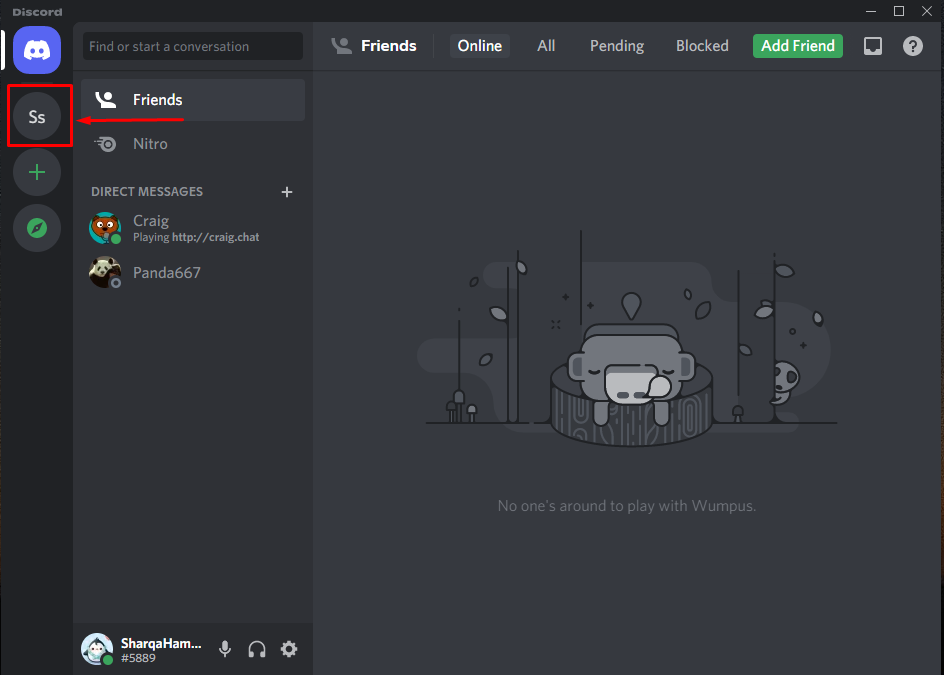
Before making someone a Mod or Moderator on Discord, we first need to create a Mod role. For this, open Discord application and select the server for which you want to add a Mod role:
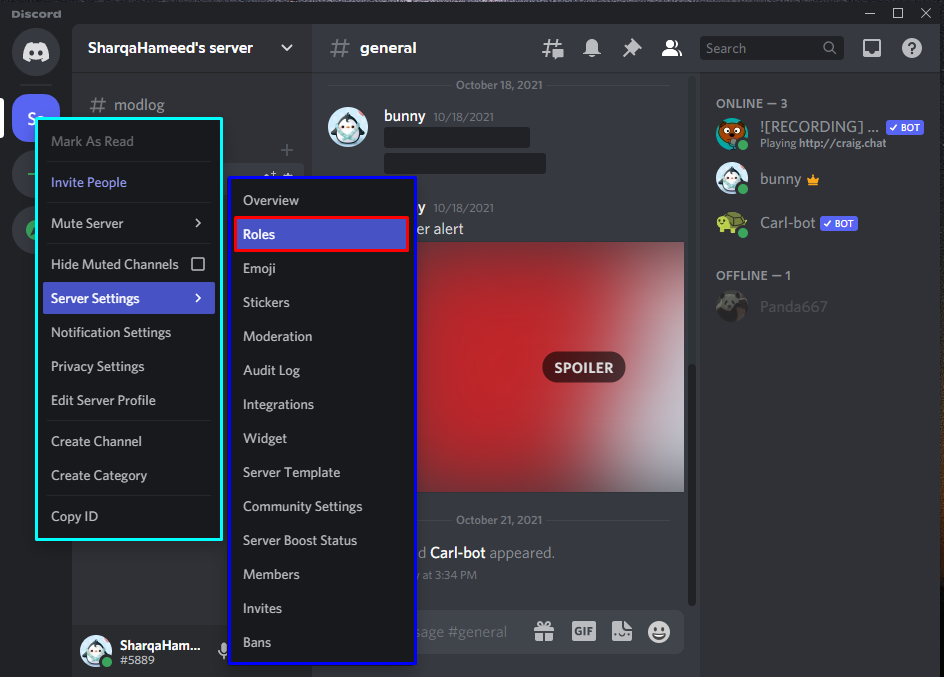
From the left click menu, go to the “Server” settings and then open up the “Roles”:
We will create a Mod role for our selected Discord server, which is “SharqaHameed” is our case. To do so, we will click on the “Create Role” button:

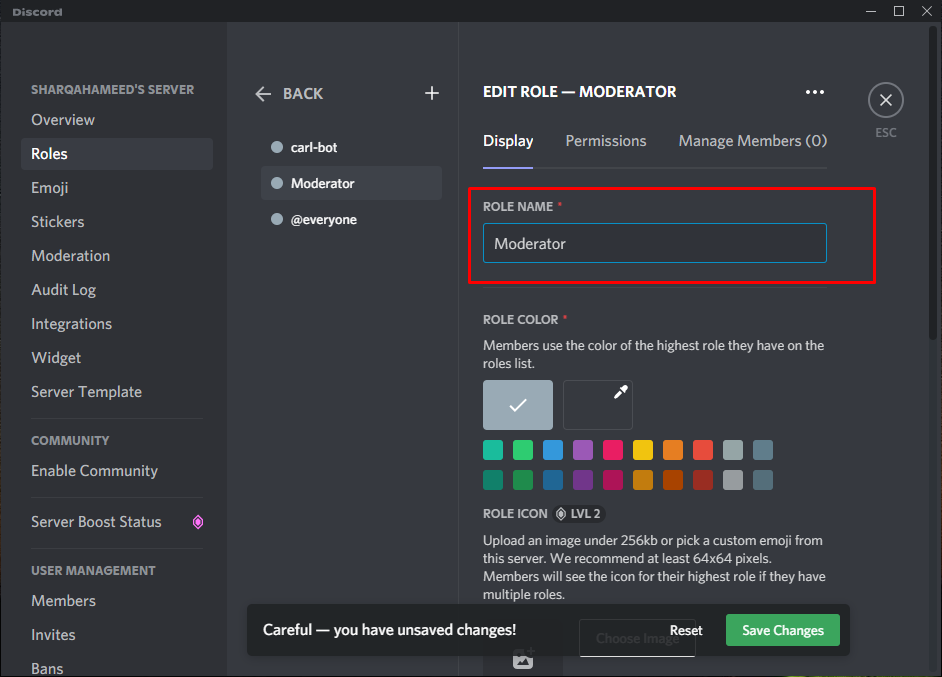
After creating a role, you will be allowed to edit using the three tabs: Display, Permissions, and Manage Members. In the “Display” tab, you can add the role name, color, and icon. For instance, we will set “Moderator” as our role name:
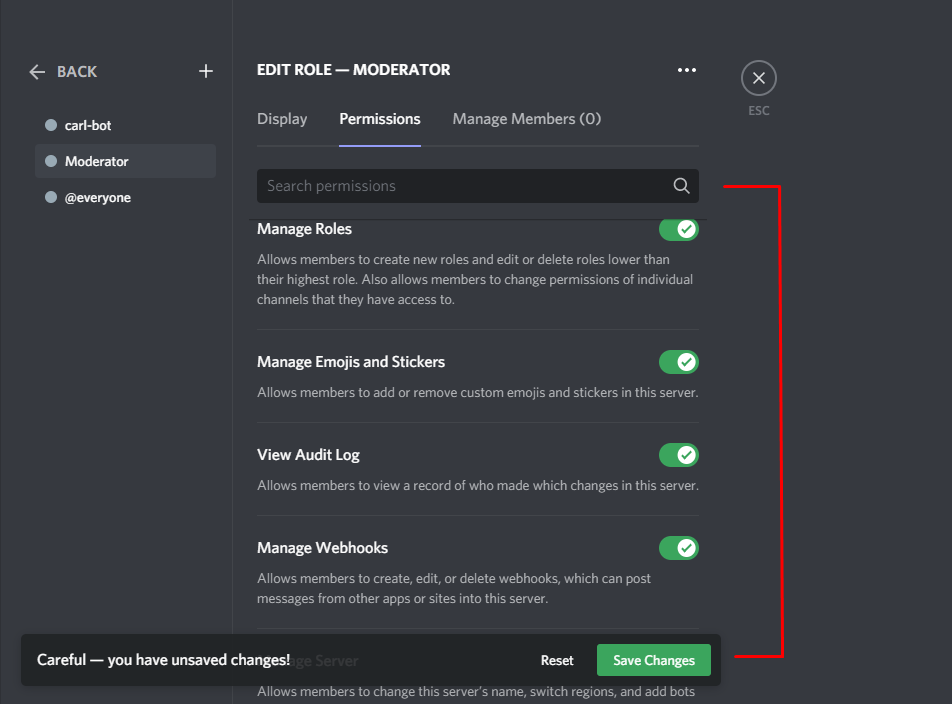
Setting permissions are essential for the created roles as it permits the Moderator what to do and what not. Using the options available in the permissions category, you can set the permissions for the Mod according to your requirements:
After editing the Mod role for your selected Discord server, click on the “Save Changes” button:
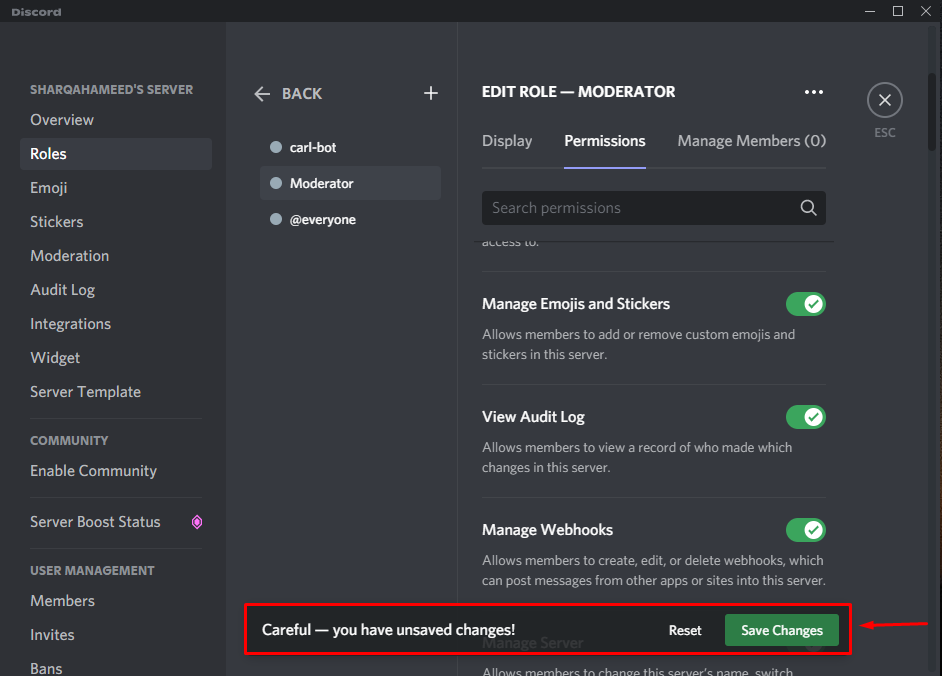
Now you have successfully created a Mod role for your Discord server.
How to make someone a Mod on Discord
As we have already created a Moderator role in the last section, now it is time to assign the Mod role to a specific member of our Discord server.
In the Server settings window, look for the “Members” option in the “User Management” categories:
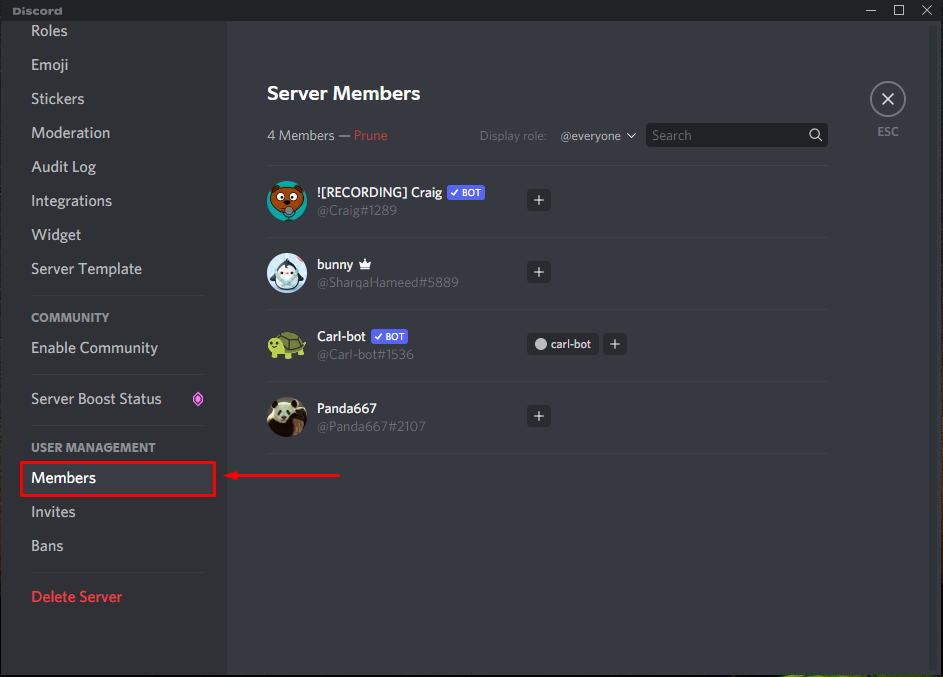
Here, you will see the list of all of your Discord server members. Now to make someone a Mod, you have to click on the “+” plus button, which is showing which each member name:
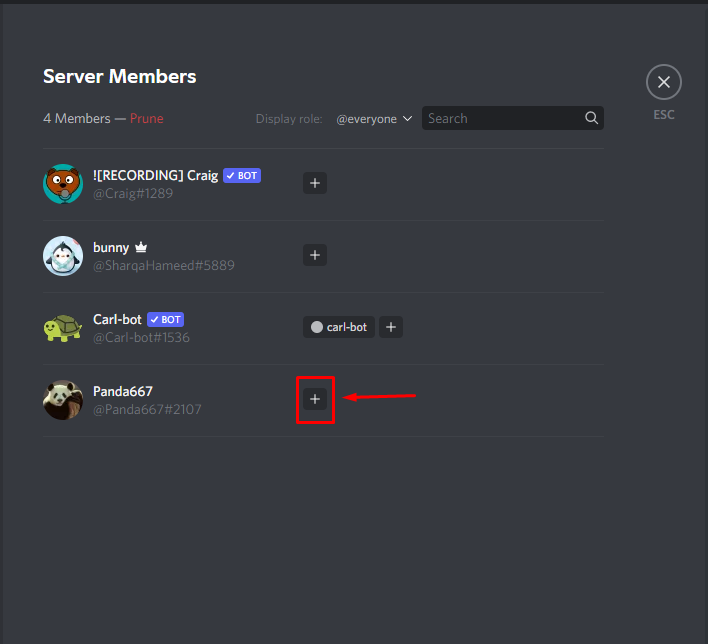
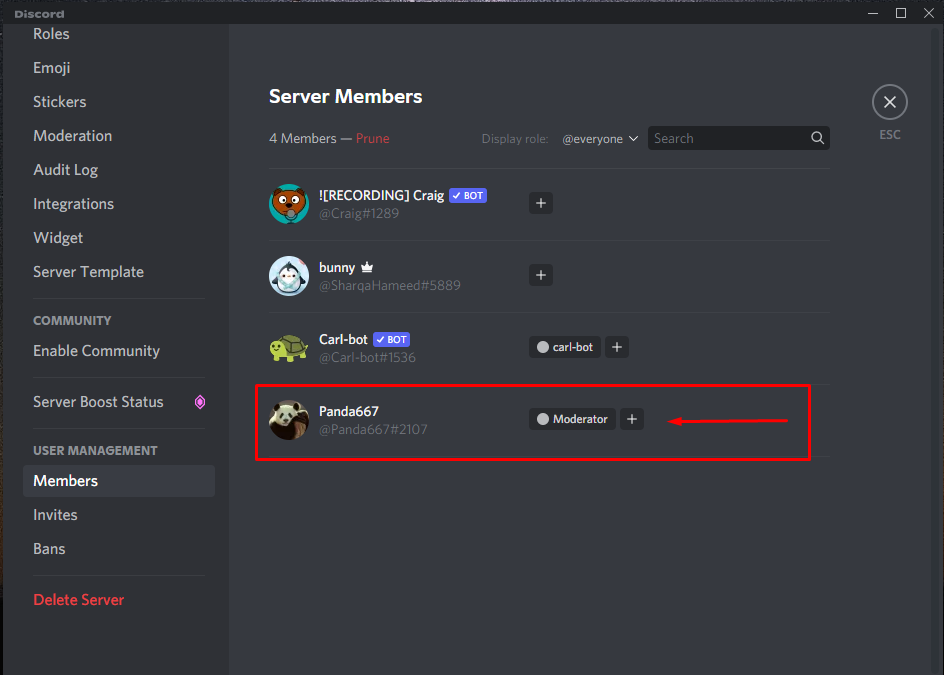
For instance, we want “Panda667” to be the Mod of my “SharqaHameed” server. For this purpose, we clicked on the “+” button, and from the list of available roles, we have selected “Moderator”:
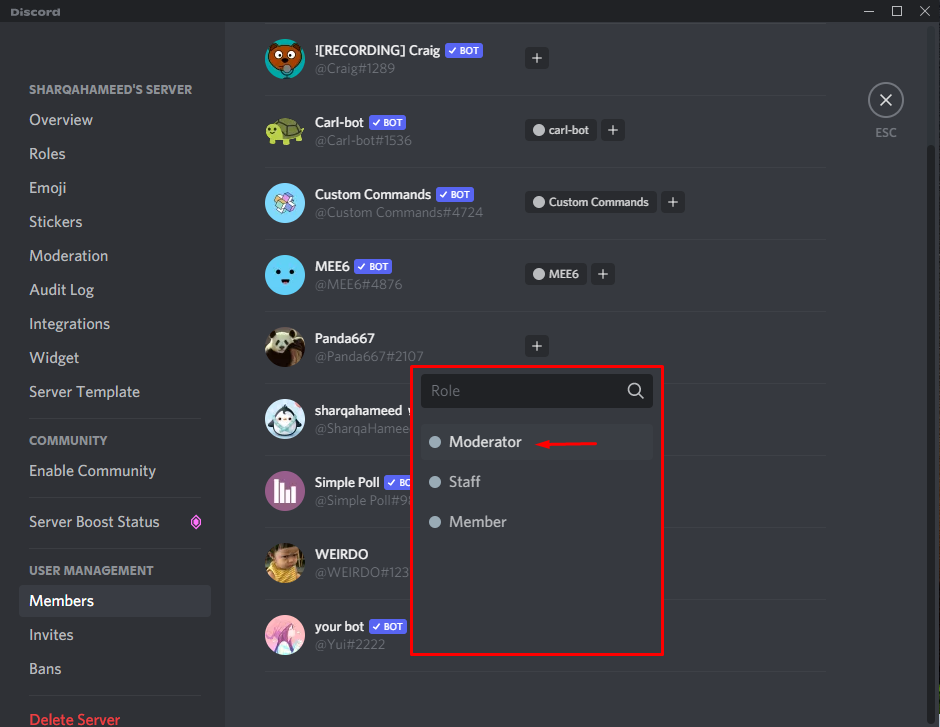
That’s it. Your selected member will now operate as a Mod on the Discord server:
Conclusion
To handle the administration of your Discord server, you need to assign the Moderator or Mod role to someone trustworthy. The role of a Mod will help you manage your Discord server, and you can also set its permissions such as banning, kicking, muting, or unmuting server members. On Discord, the procedure of making someone a Mod consists of two steps: Creating a Mod role and then assigning it to a specific server member. In this write-up, we have shown how you can create a Mod role for your Discord server. In the second section of this post, you have seen how to make someone a Mod on Discord.
from https://ift.tt/3wfQ6Pm


0 Comments