


When Nintendo released the Switch back in 2017 it was immediately apparent that it was designed to be portable and allow people to game on the go. The same can also be said about a laptop.If you’re travelling and you want to bring a gaming setup with you, those two devices go hand in hand with each other.
So if you want to take your Switch with you and connect it to your laptop to use as a monitor, there are a couple of ways you can do so.
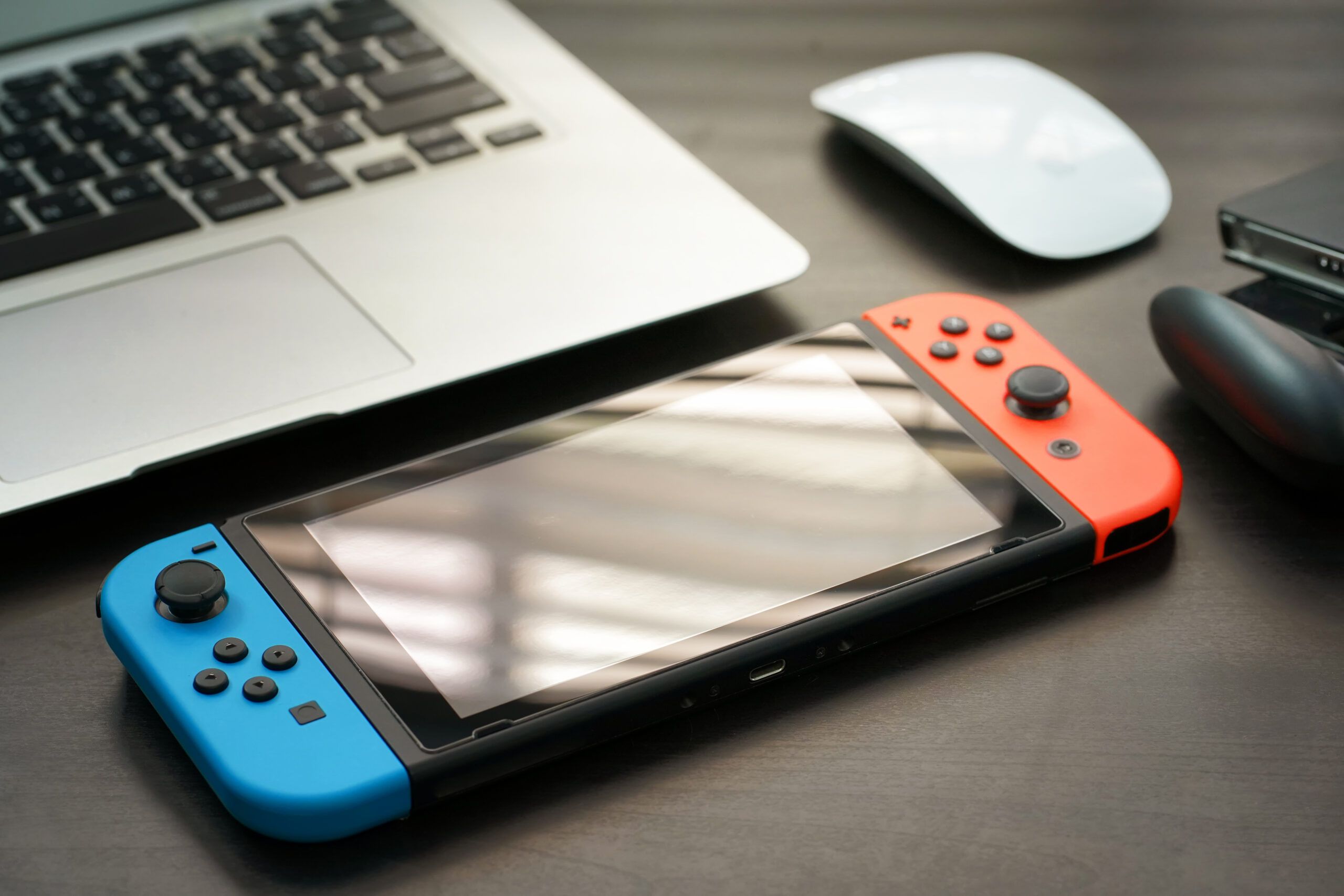
In this article, we’ll explain how you can use your laptop as a monitor for your Switch and go through all the steps you need to set it up.
Can I Use An HDMI Cable To Connect My Switch To My Laptop?
Whilst this is one method of using your laptop as a monitor for your Switch, it’s very likely that your laptop won’t allow it to happen.
To do this, you’ll need a laptop with an HDMI input port. However, the majority of laptops only come with a built-in HDMI output port.
For example, this means you can connect your laptop to a TV and use the TV as a monitor, just not the other way around. Unfortunately, the same goes for a Switch.
It’s definitely worth checking if your laptop does have an HDMI output port because this method really is as simple as connecting the cable between the two devices. We’re just saying there’s not a great chance your current laptop will support it.
If you’re thinking about ways to convert your laptop’s HDMI output port to support an input, read on to the next section where we’ll explain the best way to use your laptop as a monitor for your Switch.
Can I Use A Capture Card To Turn My Laptop Into A Monitor For My Switch?
Hands down, the best way to use your laptop as a monitor for your Switch is through a capture card.
A capture card is a piece of hardware that allows you to capture footage of gameplay from a console and transmit it to your computer. Plenty of gamers on YouTube and Twitch use capture cards to record their gameplay and upload videos or stream it to their viewers.
Even if you’re not a content creator, you can use a capture card in other ways with your Switch, like turning your laptop into a monitor!
Because your laptop probably doesn’t have an HDMI input port, the capture card will act as an adapter to give the same effect.
How To Use A Capture Card To Connect Your Switch To Your Laptop
For this method, you will need a few additional items to go with your Switch and laptop:
- A capture card
- Two HDMI cables
- A Nintendo Dock
The HDMI cables and Nintendo Dock shouldn’t be too hard to find. Your Switch console will likely have come with one HDMI cable and the Nintendo Dock.
If, for whatever reason, you don’t have the dock any more and you can’t find enough HDMI cables, you can find both of them in plenty of places online or at an electronics store.
The capture card is something you’ll have to search out and purchase for yourself.
Elgato is the best brand on the market and they have a great variety of different capture cards at different price points depending on what you need from your device.
Other brands are available, so feel free to look around and find the capture card that’s best for you. The only criteria you’ll need to look out for are the two HDMI ports on either side of the capture card. As long as you have these, you’re good to go!
Step-By-Step Instructions
Ok, once you’ve got all your equipment together, connecting your Switch to your laptop through a capture card is really simple.
- Insert one end of an HDMI cable into the HDMI port on your Nintendo Dock
- Connect the other end of the HDMI cable to the HDMI input port of your capture card (the input port should be labelled clearly on the capture card itself)
- Insert a second HDMI cable into the HDMI output port of your capture card (this will also be labelled)
- Connect the other end of the second HDMI cable to your laptop’s HDMI input port
- Connect your Switch to the Nintendo Dock
- Load up the capture card’s software on your laptop
- Enjoy your gaming!
It really is that simple. It can be a bit of a pain having to go and get all the different components to make this work but once you have it all, you’ll be able to play through your laptop screen for countless hours of fun and never have to worry about it again.
Final Thoughts
As I said at the start of this article, the Nintendo Switch and laptop go hand-in-hand with being the best devices for gaming whilst travelling.
With the game capture method, your travelling experience won’t be interrupted, as the capture card and HDMI cables will fit neatly into a bag and you won’t even notice they’re there!
Even if you’re not travelling, these methods could be handy for your gaming experience at home.
All sorts of things can go wrong with a TV or monitor and if you don’t want to buy a new one (or just can’t wait for it to arrive!), all you have to do is whip out your laptop and keep on playing.
If you’re still not keen on getting yourself a capture card but don’t mind upgrading to a new laptop, make sure you look for one with both HDMI input and output ports. Some of the top-line gaming laptops on the market will come with both ports built in but these can be a bit more expensive.
Hopefully you’ve learned a thing or two about using your laptop as a monitor for your Switch. Now you’ll never be stuck without a way to play your favorite games again!
from https://ift.tt/3vBXFzz



0 Comments